App Awareness
Overview
App Awareness helps teams understand which Splunk apps are deployed, how they are used, and where app versions or knowledge objects differ across the environment. Use it to investigate application adoption, identify version inconsistencies, and support migration or operational planning.
Open App Awareness from Power Utilities. It opens to App Utilization by default.
App Awareness does not require separate utility-level configuration in Atlas Settings.
Capabilities
- Review application and dashboard usage over the selected period.
- Investigate the users interacting with an app or dashboard.
- Compare installed app versions across Splunk components.
- Review default and local knowledge objects for an app.
- Export app tracking results for follow-up analysis.
App Utilization
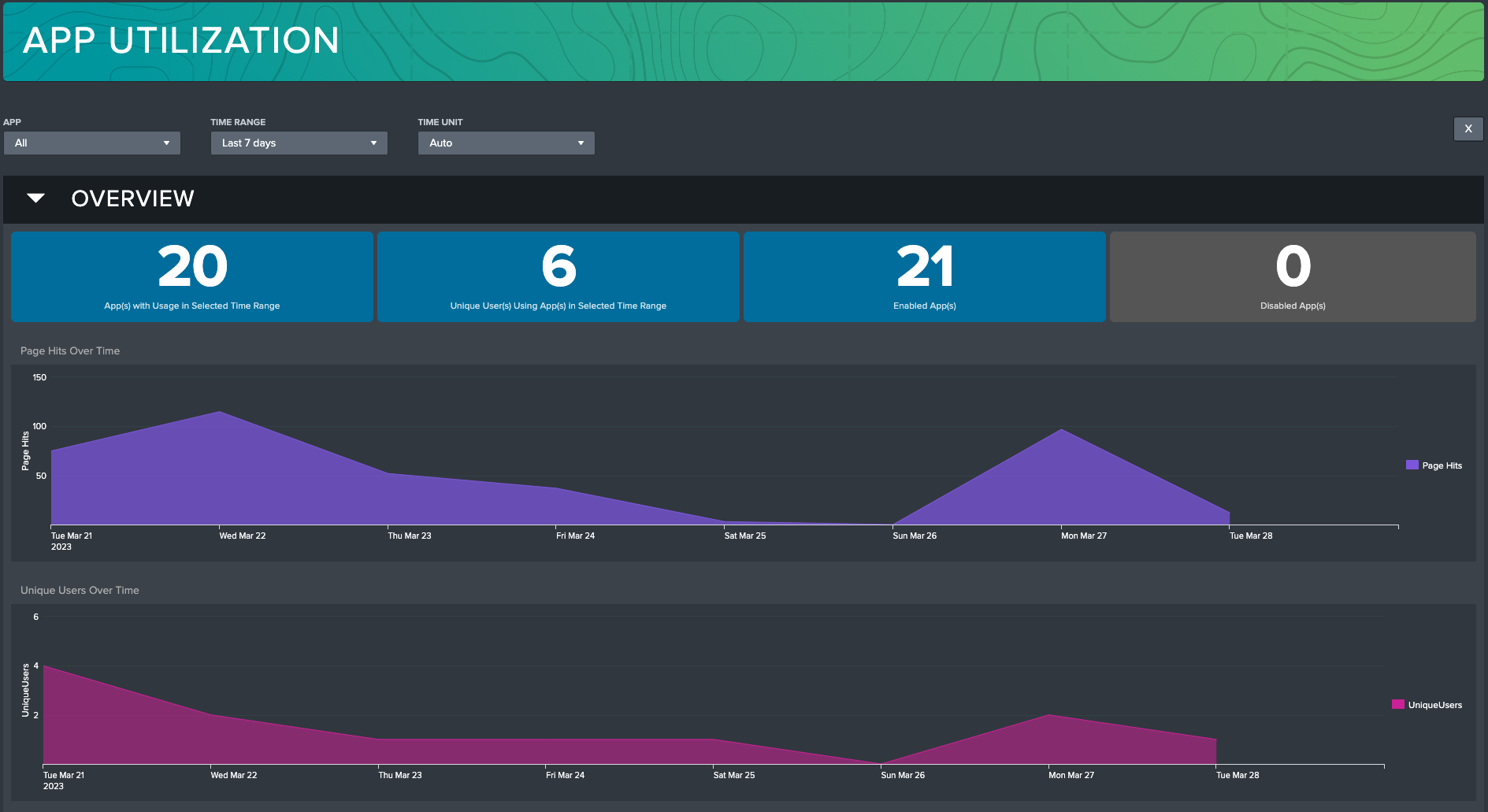
Use App Utilization to understand which apps and dashboards are active and where users spend their time. It helps identify popular and underused applications, and can indicate where users spend their time when working in Splunk.
Dashboard overview
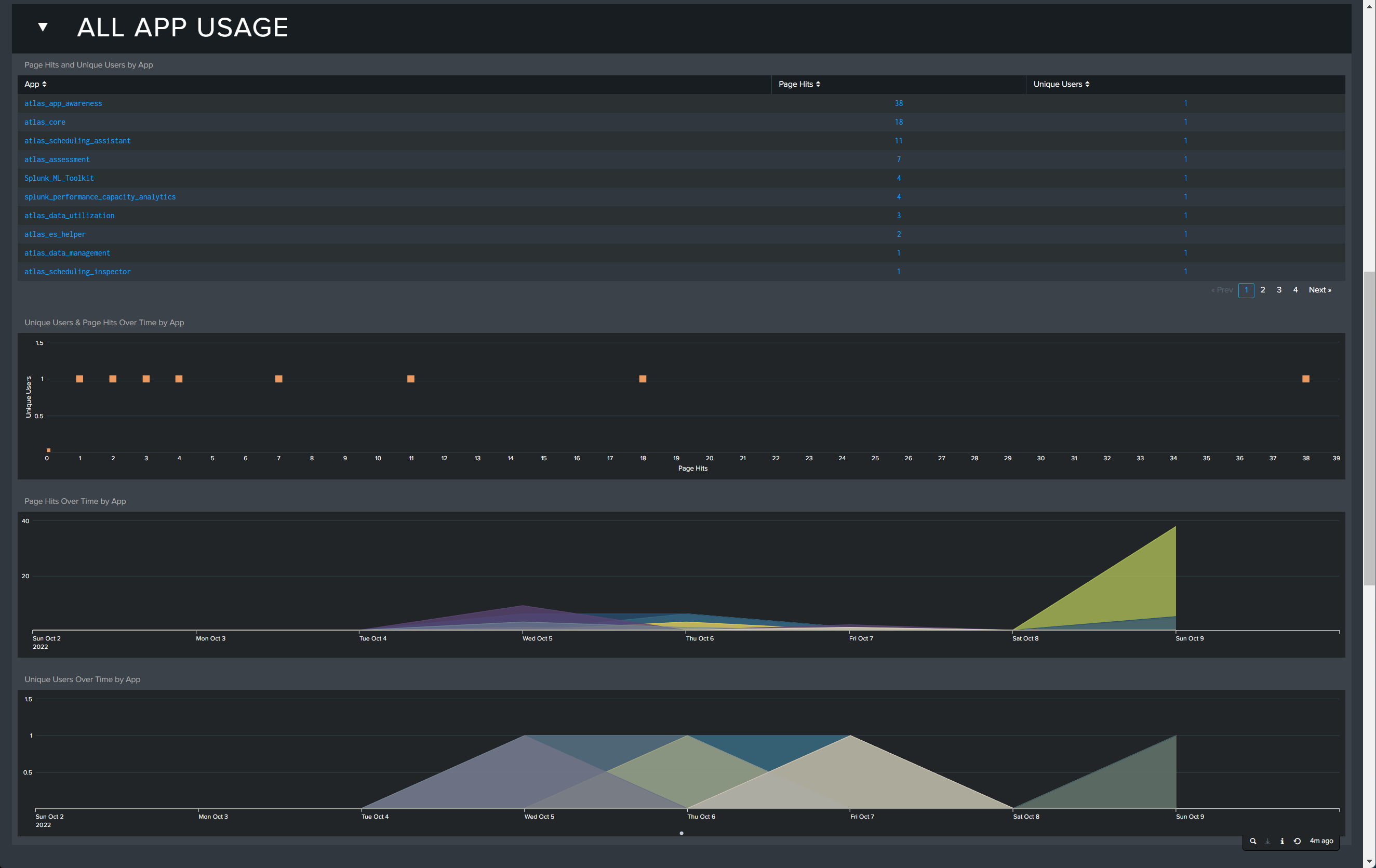
The summary area shows active applications and users, plus enabled and disabled application counts for the selected period. Usage visualizations show page hits and unique users over time. All App Usage lists installed applications with page-hit and unique-user totals.
Filters and navigation
- Select an app from the App Filter or All App Usage to focus the dashboard on its dashboards and usage.
- Select All in the App Filter to return to the environment-wide view.
- Use the dashboard time range to review a different reporting period.
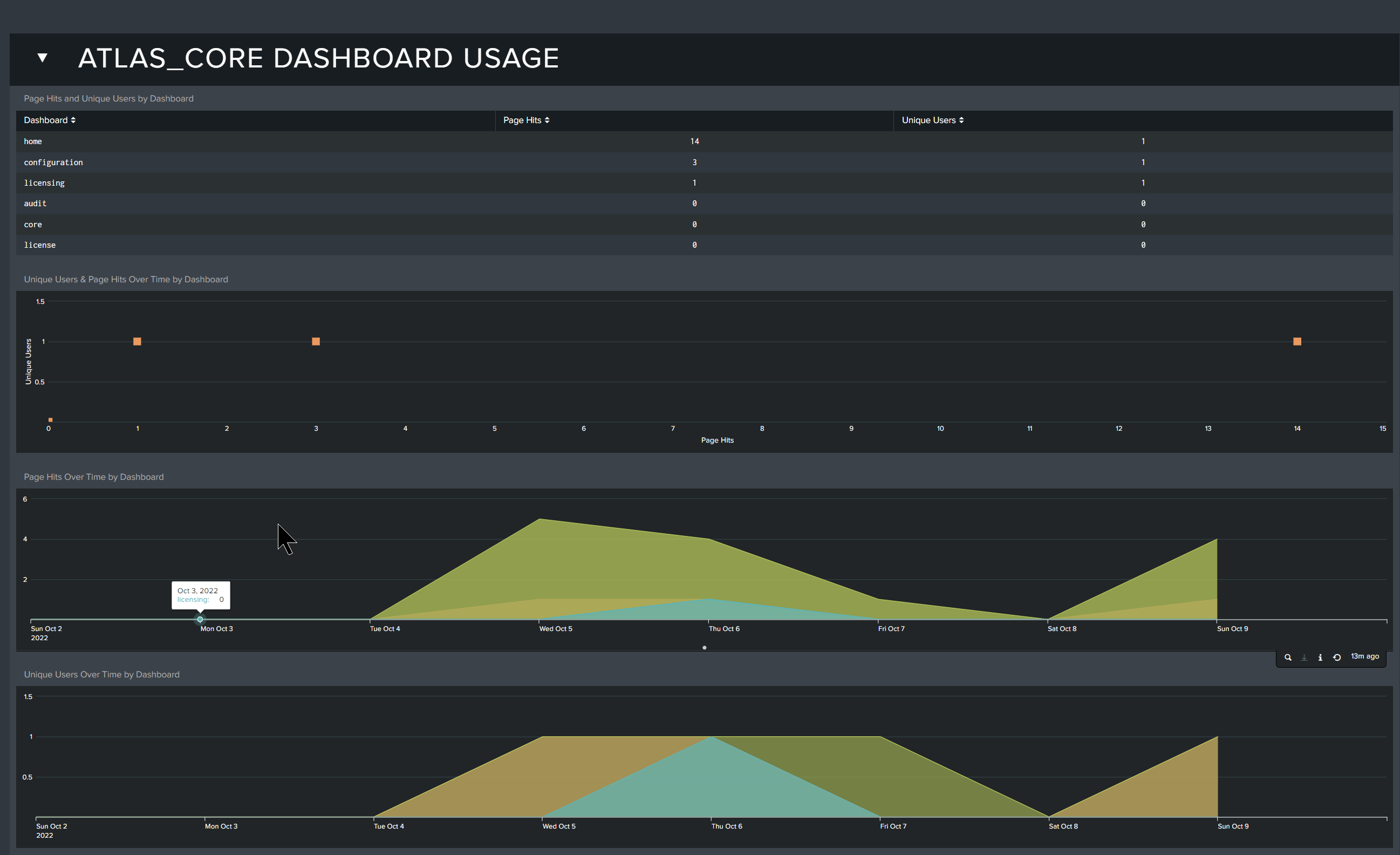
User investigation
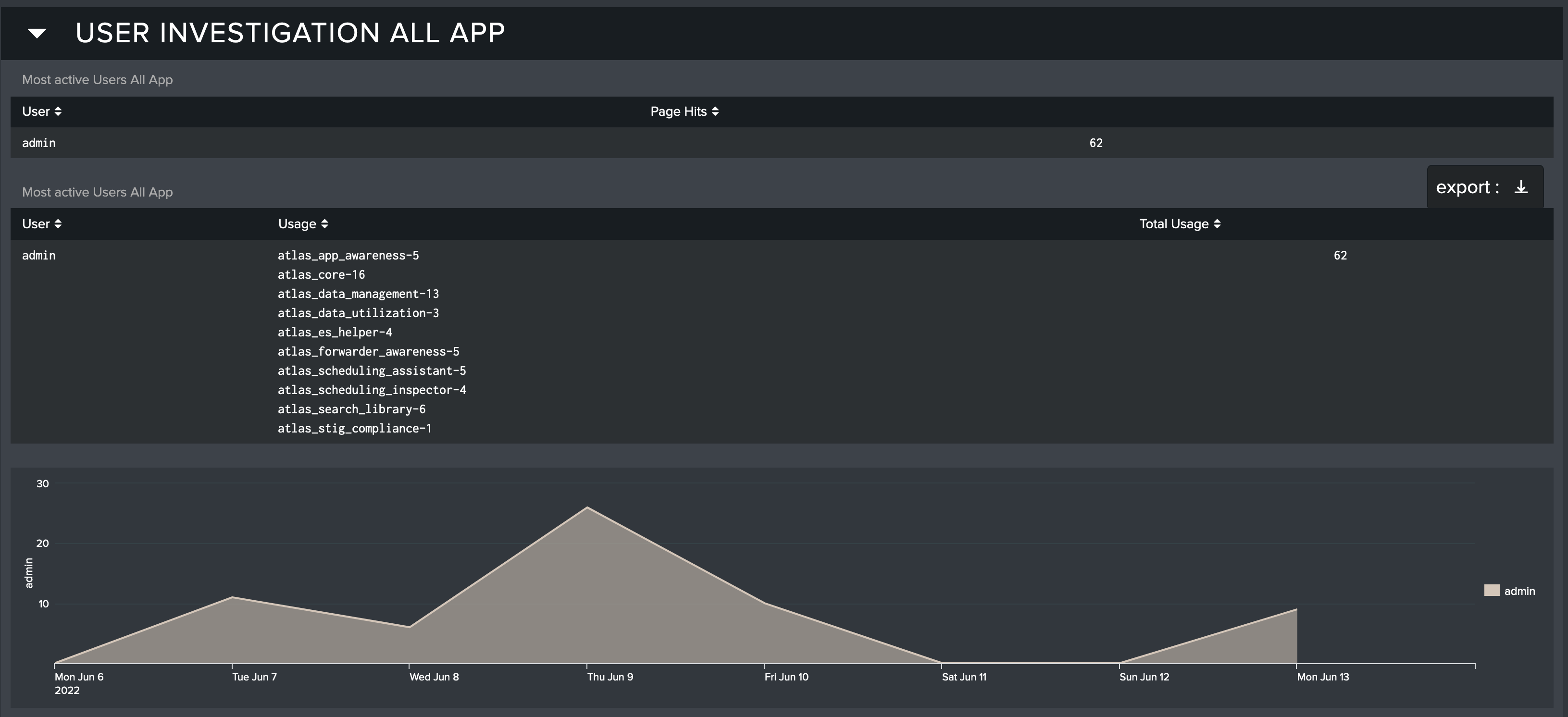
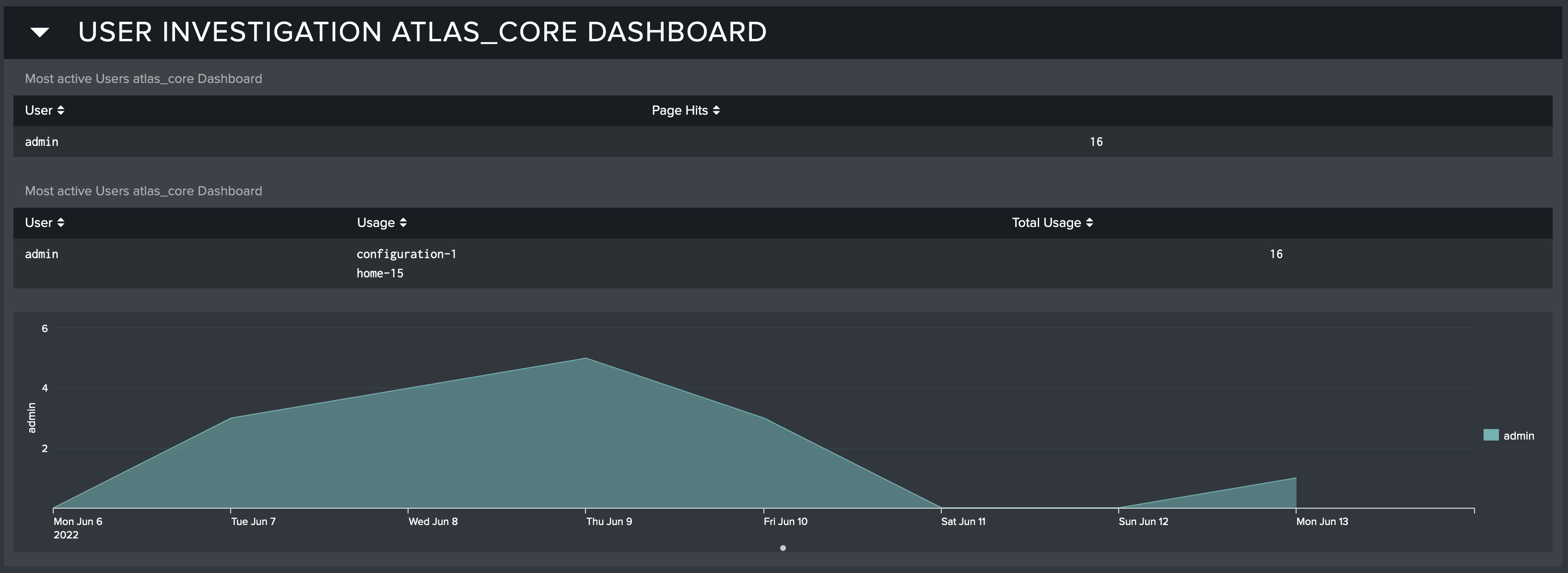
The User Investigation section provides a deeper view of activity. Review per-user activity for all apps, or for dashboards in the selected app, using the table and visualization to see which users are active and how frequently they use the selected scope.
App Tracking
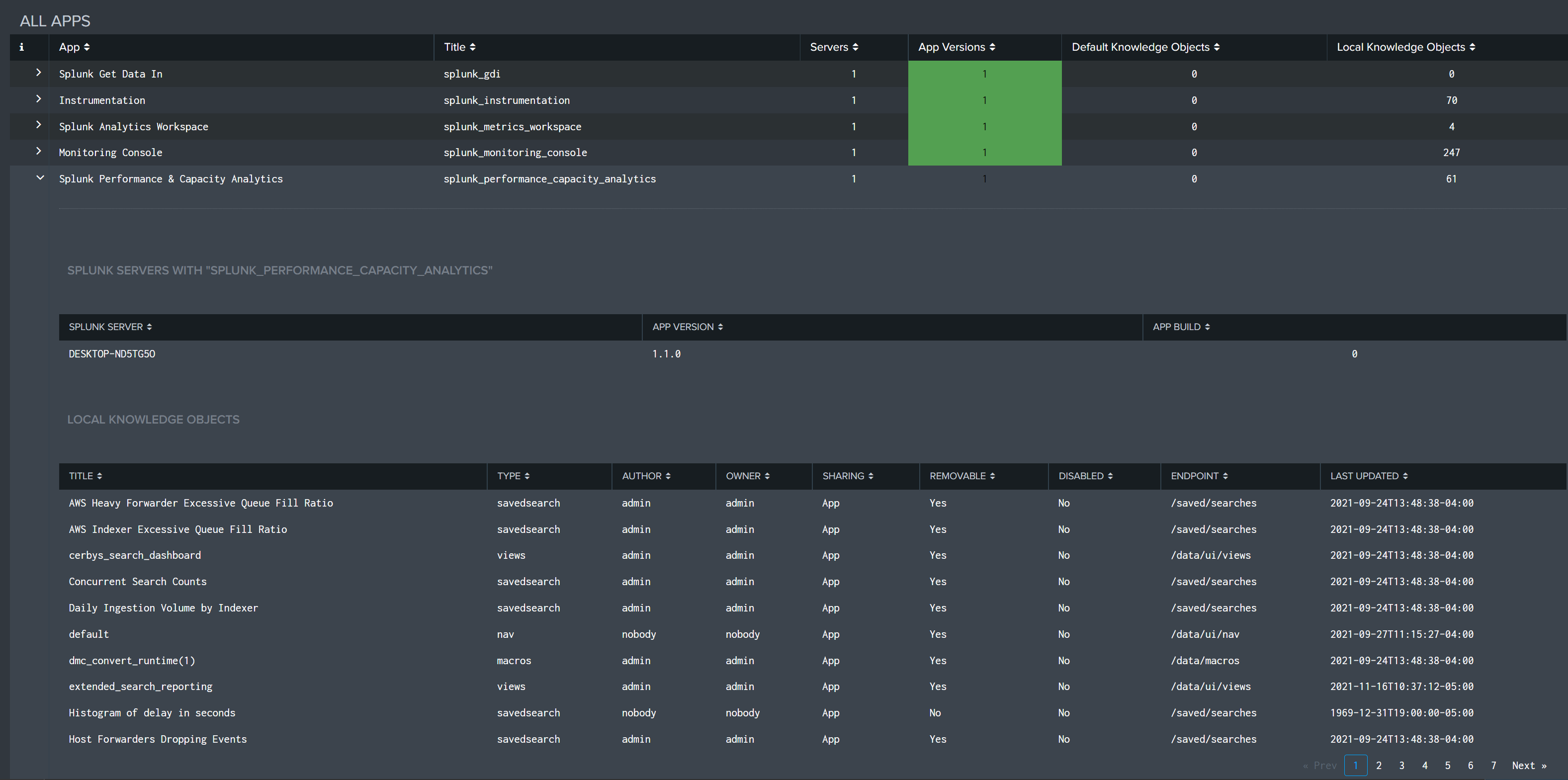
Use App Tracking to identify application-version differences and review the knowledge objects installed with each app. Version differences between search heads and indexers can lead to inconsistent searches, alerts, reports, and dashboards, and can go unnoticed without an environment-wide view.
Dashboard overview
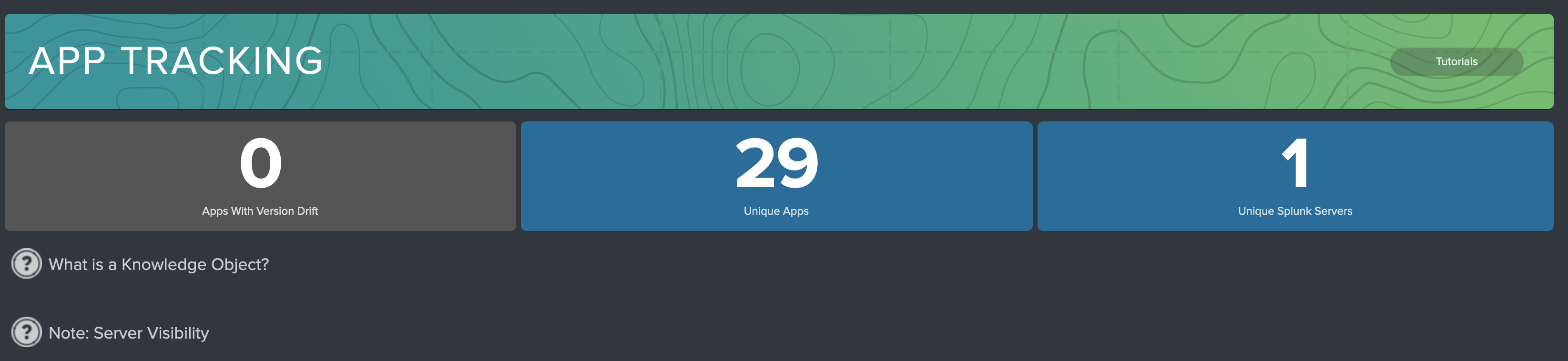
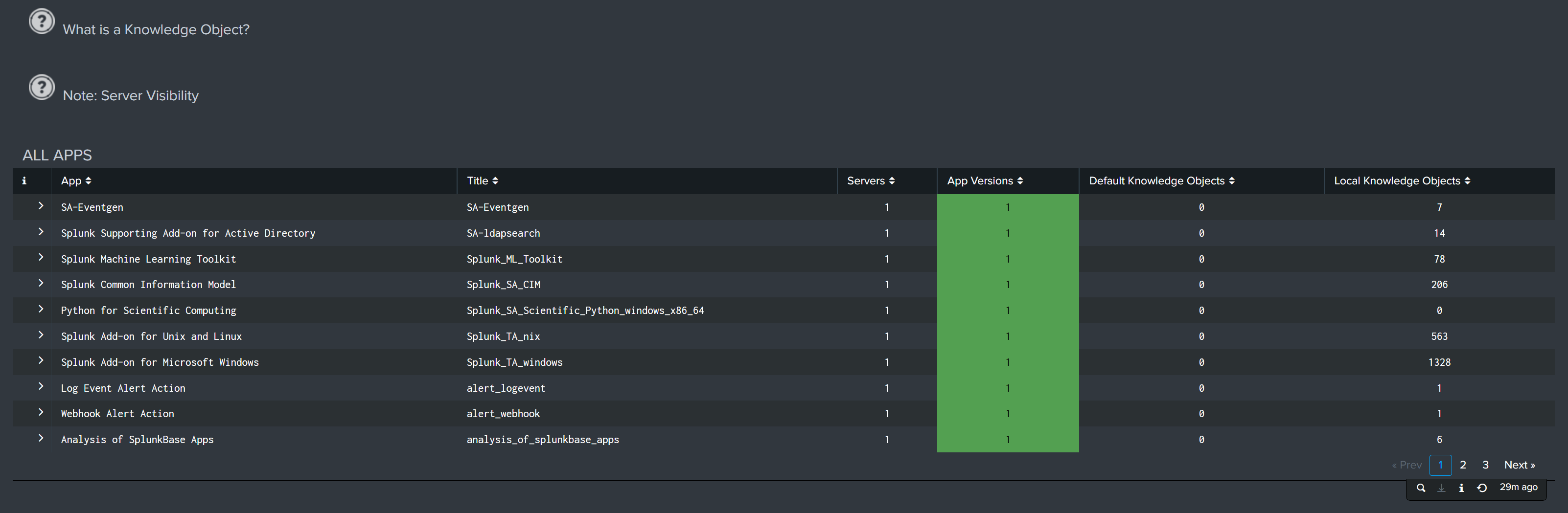
Summary indicators show apps with version inconsistencies, unique installed apps, and the Splunk servers reporting app data. All Apps lists each app, its installed-server count, detected versions, and default and local knowledge-object totals. Select an app with an inconsistency to identify the components and versions that require review.
App details and exports
Select the arrow beside an app in All Apps to expand its installed versions and builds by Splunk server. The expanded details also list the app's known knowledge objects, including their type, owner, visibility, location, and last update time. This helps identify local customizations that may require review before troubleshooting an app or planning a migration.
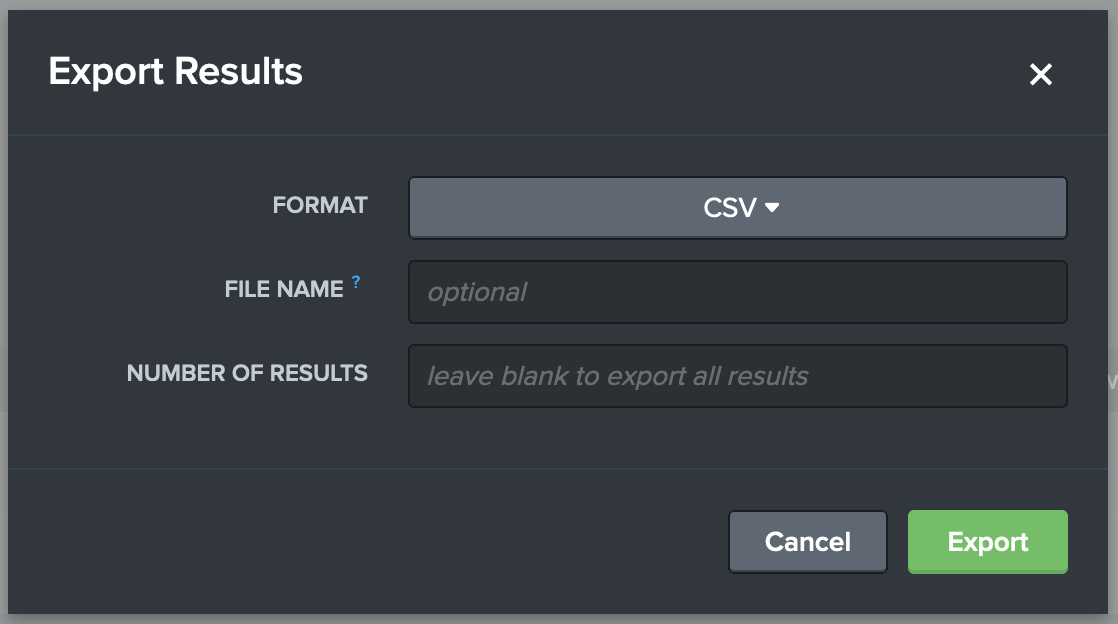
Use Export in the table to download the displayed app-specific or all-app results as CSV, XML, or JSON.